
Worming from Home How to Sign and Return Contracts
A multi-step physical puzzle between you and the senior title.
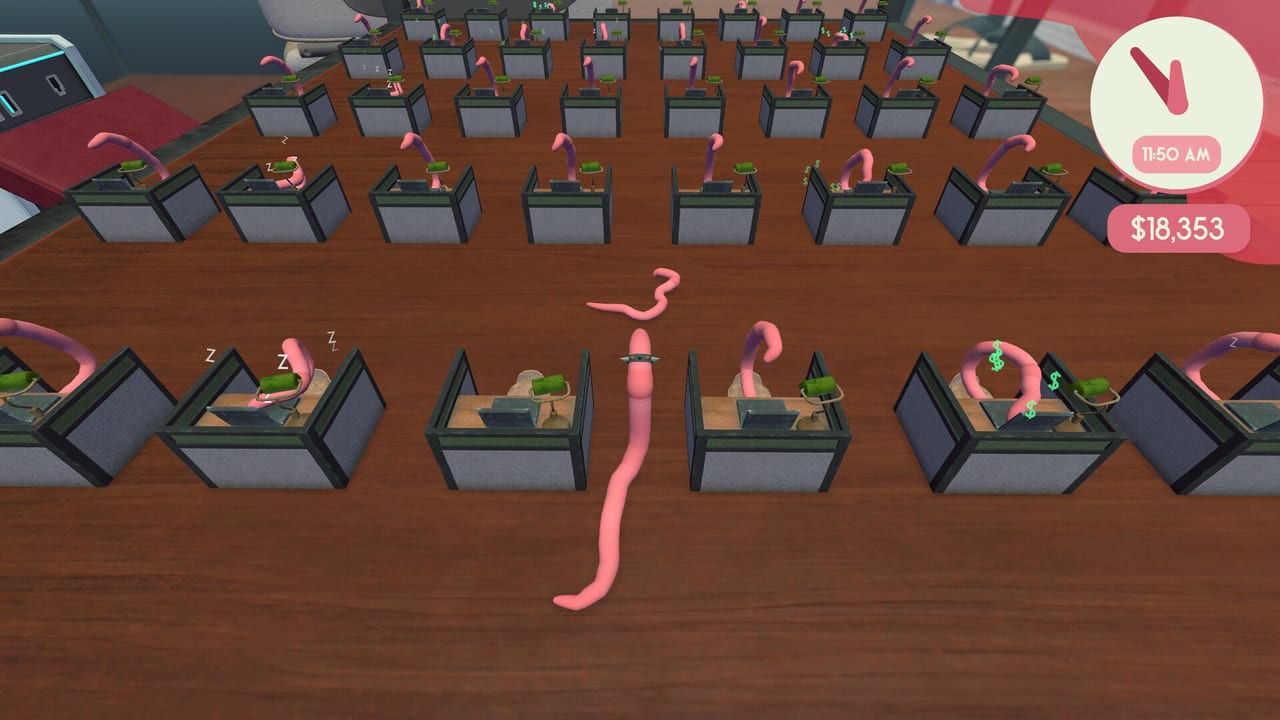
The contract is the middle progression pivot in Worming from Home. What should take thirty seconds in a real office becomes a days-long quest for a worm. This page covers every step: printing, signing, scanning, and the expense report disposal that catches players who skip the manual. The promotion this unlocks is covered in How to Get Promoted. Task basics are in How to Complete Tasks.
The dependency chain
Full-release play and developer replies agree on the sequence: obtain the printer, reach its controls, produce the page, use the pen to sign it, and scan or return the signed document as the current card directs. Skipping any step in that chain stalls the promotion. The board will not advance until the document cycle is complete.
Printer controls are on top
The printer top panel is where the options live. If the worm cannot get high enough to see the print interaction, the route is not waiting for another computer app — it is waiting for better movement, a stronger jump, or a cleaner approach. Train at the gym, buy an upgrade, or change the desk setup until the top panel is reachable.
Walk across the printer slowly enough for the interaction labels to appear. Do not throw the body at it and assume proximity counts. Wait for the label, then commit.
Printing the document
Once the top panel is reachable, look for the print control. The demo and launch footage show a confirmation state: the page must actually exist before you can sign it. A common mistake is moving toward the pen while the printer is still thinking. Confirm File Complete! or a visible page state before you leave the machine.
If the printer produces a blank page or nothing happens, return to the printer controls. The print command did not fire. Diagnose by the last confirmed state — no page means no page.
Signing with the pen
Bring the pen to the signature area. Watch for the page state to change. Scribbling elsewhere may look convincing without registering. The game needs a clean hit on the recognized signature zone before it advances.
Once signed, the page state changes. Move the page to the scanner or printer interaction that the current card names. Do not throw it toward the machine and assume proximity counts. Wait for the objective or device status to acknowledge the page.
A signed page sitting beside the printer with no objective change has not been scanned or returned. Repeating the whole workday hides which handoff failed.
Scanning or returning
The card will name one of two valid destinations: the scanner or the return slot. The 9puz guide documents both as confirmed by developer Zach Northrop on Steam. If the card does not specify, the safe defaults are:
- Scanner: approach the front with the signed page facing the glass, wait for the readback
- Return slot: find the named location and drop the page where indicated
Expense report disposal
A later document task can ask you to get rid of an expense report. Water is not the solution. Developer Zach Northrop confirmed two valid destinations on Steam: the trash can or the recycling slot at the back of the printer.
The recycler is the shorter route when the document is already beside the printer. Approach the rear opening with the page under control and release it only after the opening is lined up.
The trash can begins on the floor below the desk. A community-tested method: pull the can behind the printer, then carry or throw the page off that side so the landing zone is directly underneath.
If the paper or container becomes unreachable, use the pause-menu reset option before repeating the route. Resetting is a recovery tool, not a completion trigger — the report still has to enter a recognized disposal point.
Diagnostic table
| What remains on screen | Most useful next check | What not to repeat yet |
|---|---|---|
| Printer objective, but no page | Reach the top controls and wait for the print interaction | Searching the computer desktop for the paper |
| Signature objective | Place the pen on the recognized signature area and wait for the page state | Scanning an unsigned sheet |
| Destroy-document objective | Rear recycling slot or floor trash can; reset item positions after a bad drop | Soaking or hiding the page |
What comes next
A completed and returned contract advances the promotion chain. The final step is the video call interview, covered in How to Get Promoted. Desk movement for reaching these objects is in How to Play.
Frequently Asked Questions
Quick answers to the most common questions.
Where are the printer controls?
On top of the printer. If you cannot reach them, improve movement with gym training or buy a desk upgrade.
Why will the pen not sign?
Place the pen directly on the recognized signature area. Scribbling elsewhere may look convincing without registering.
Where do I put the expense report?
The trash can or the recycling slot at the back of the printer. Water is not a valid disposal method.
A signed page is sitting there but nothing is happening.
Scan or return it as the card specifies. A signed page beside the printer with no objective change has not been accepted.